
How to add a MIB (so that IPNetwork Monitor can recognize new OIDs)?
Q: Certain parts of OID tree are not displayed, or displayed as numerical values. How can I make IPNetwork Monitor display all the SNMP variables as named OIDs?
A: Click [Select…] button on the right of OID entry on Main parameters tab in Parameters/Results pane to open MIB browser:

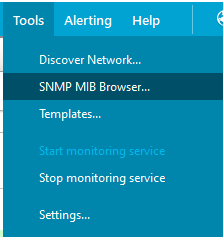
Also, you can start MIB browser from Tools menu:
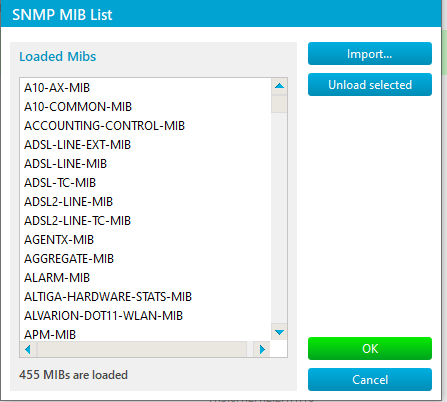
Click “MIBs” button at the bottom of MIBs browser window to display currently available MIBs definitions files list:

MIBs files are stored in
%ProgramData%\IPNetwork Monitor\mibs
folder (depends on how the software is installed).
You can import a new MIB definition using “Import” button (it allows to browse the entire filesystem for the definition file):
If you can’t find a definition for a specific OID, you can use our service to download the required MIBs files and import them.
Related topics
SNMP MIB Browser
Check out our Knowledge Base where we answer questions regarding various topics. MIB files are stored in the IPNetwork Monitor mibs folder, commonly under %ProgramData%\IPNetwork Monitor\mibs depending on the installation. Open the MIB browser, click the MIBs button, then use Import to browse to and load the MIB definition file. The needed MIB definition is missing or not loaded, so IPNetwork Monitor can display the OID only as its numeric path.
Frequently Asked Questions
Where are MIB files stored for IPNetwork Monitor?
How can a new MIB definition be imported?
Why do some OIDs appear as numbers instead of names?